Install and Manage Apps
Install from the marketplace, import local mini apps, add computer programs, and manage launching, updates, uninstalling, data, and marketplace submissions.
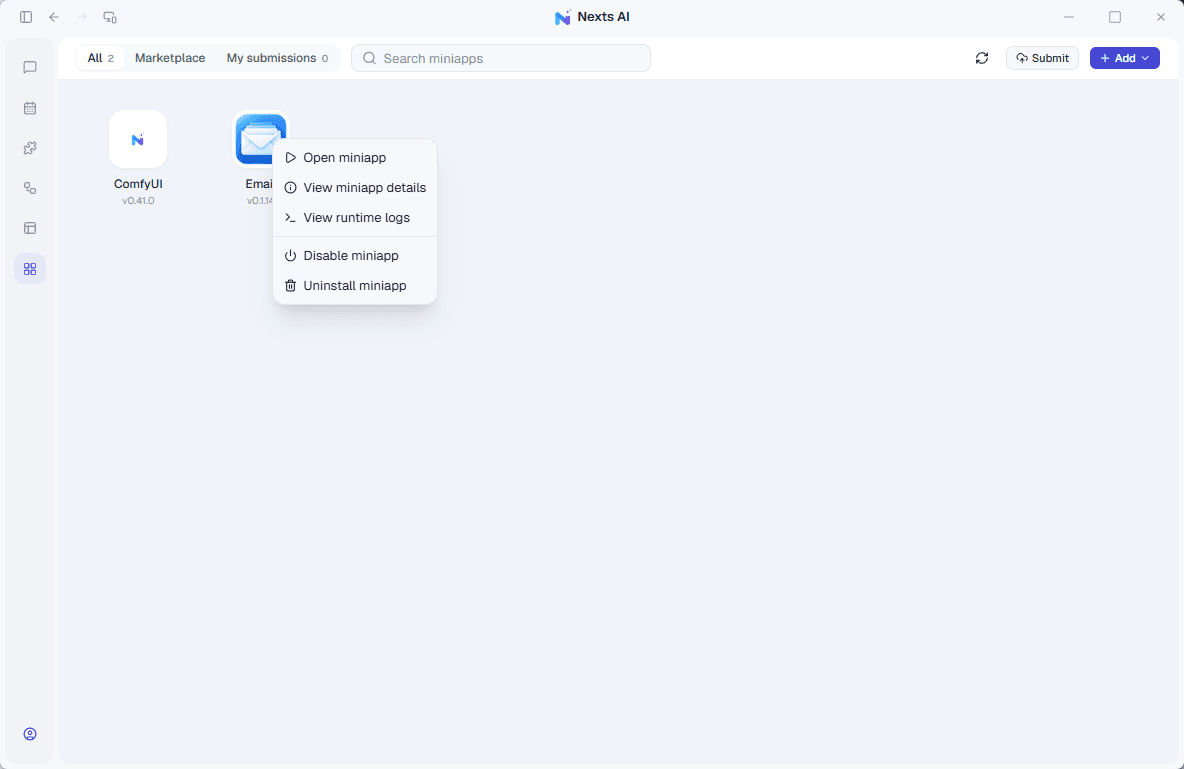
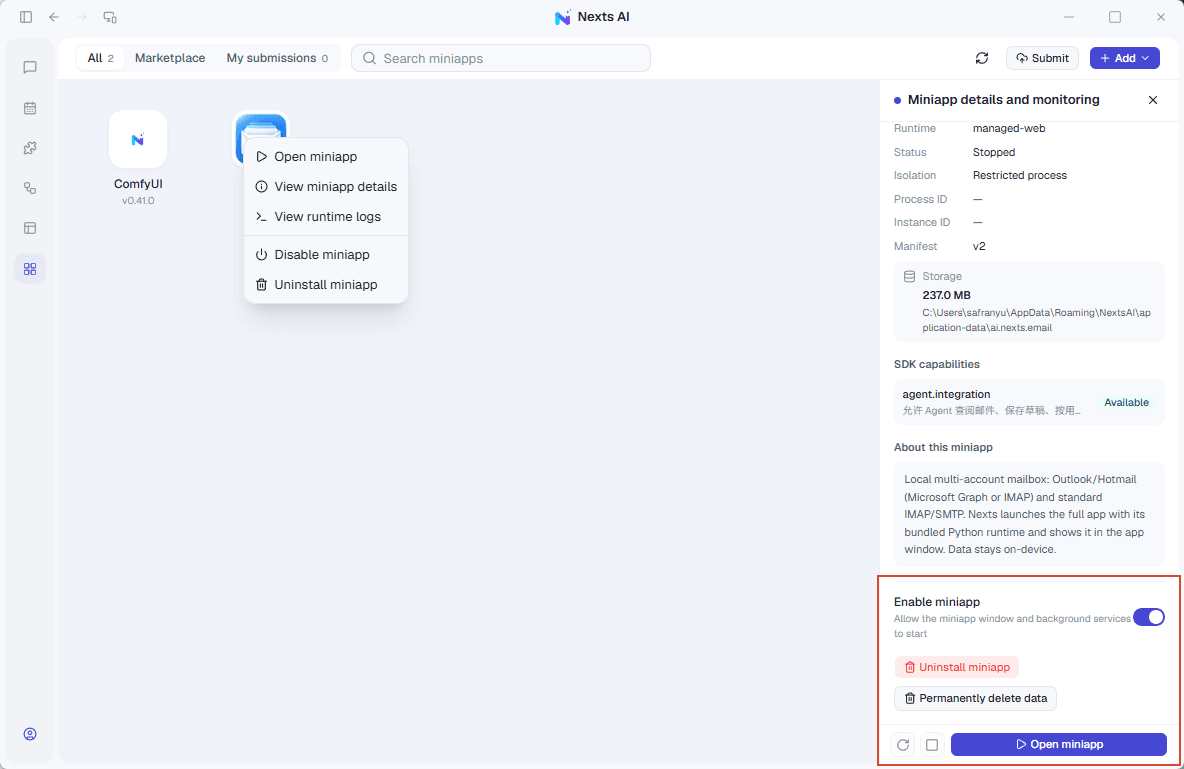
Open: activity bar → Apps.
The Apps page manages two kinds of tools: Nexts mini apps and Windows programs on your computer. Choose an installation method based on the source, then check that you can open the tool and save results. For how to use each mini app, see Mini Apps.
Choose an installation method
| Feature | What it does | How to use it |
|---|---|---|
| Marketplace mini apps | Install published tools | Market → Details → Install |
| Local mini app package | Try your own tool or one from a trusted source | Add → Install package |
| Local directory | Install a mini app from a folder on your computer | Add → Install from local directory |
| Add an existing program | List software already installed on your computer | Add → Add computer app |
| Choose a program manually | Add a program that was not detected | Browse .exe → Confirm name |
| Marketplace installation | Download and launch a third-party installer | Market → Computer application → Install |
| Launch and detection | Open the program and refresh detection | Installed → Open / Detect again |
| Updates | Check available versions and follow the update flow | Updates / App details |
| Removal and uninstalling | Remove a shortcut or uninstall the program | App menu → Choose the intended action |
Computer program management requires the Windows desktop client. Check the marketplace for current applications and versions.
Install a marketplace mini app
- Open Apps → Market and search by name or purpose.
- Review its features, supported platform, version, and permissions.
- Click Install, review the confirmation, and wait for completion.
- Open it from Installed, complete a small task, and check the result.
For entries that provide a Windows installer, follow "Install a program with an installation wizard" below.
Import a local mini app
- Click Add on the Apps page.
- Choose Install package or Install from local directory, depending on the files you have.
- Select the file or folder, review its name, source, and permissions, and confirm installation.
- Open it from the installed list and check adding, saving, and reopening data.
Local installation requires the desktop client. If you do not have a package yet, ask AI to build one or follow the SDK tutorial.
Add an installed program
- Choose Add → Add computer app.
- Search installed programs, or choose Browse .exe.
- Confirm the name and add it.
- Click its icon to verify that the intended program opens.
Result: the program appears in Nexts. This adds a launch shortcut; it does not reinstall the program or automatically grant the AI control over it.
Install a program with an installation wizard
- Open Apps → Market and search for the computer program.
- Check its source, version, and third-party installer information.
- Click Install and complete the Windows installation wizard after download.
- Return to Nexts. If the program was not detected, choose Detect again.
- Click its icon in the installed list to verify that it opens.
Third-party programs run with their own system permissions.
Updates, disabling, and background services
- Update: review the release notes in Updates and confirm. Computer programs update through their own updater.
- Disable: pause the app window and related services; enable it again when needed.
- Background services: for mini apps with a service, check status and logs from Running or the details page, and stop or restart the service.
Let the assistant operate a program
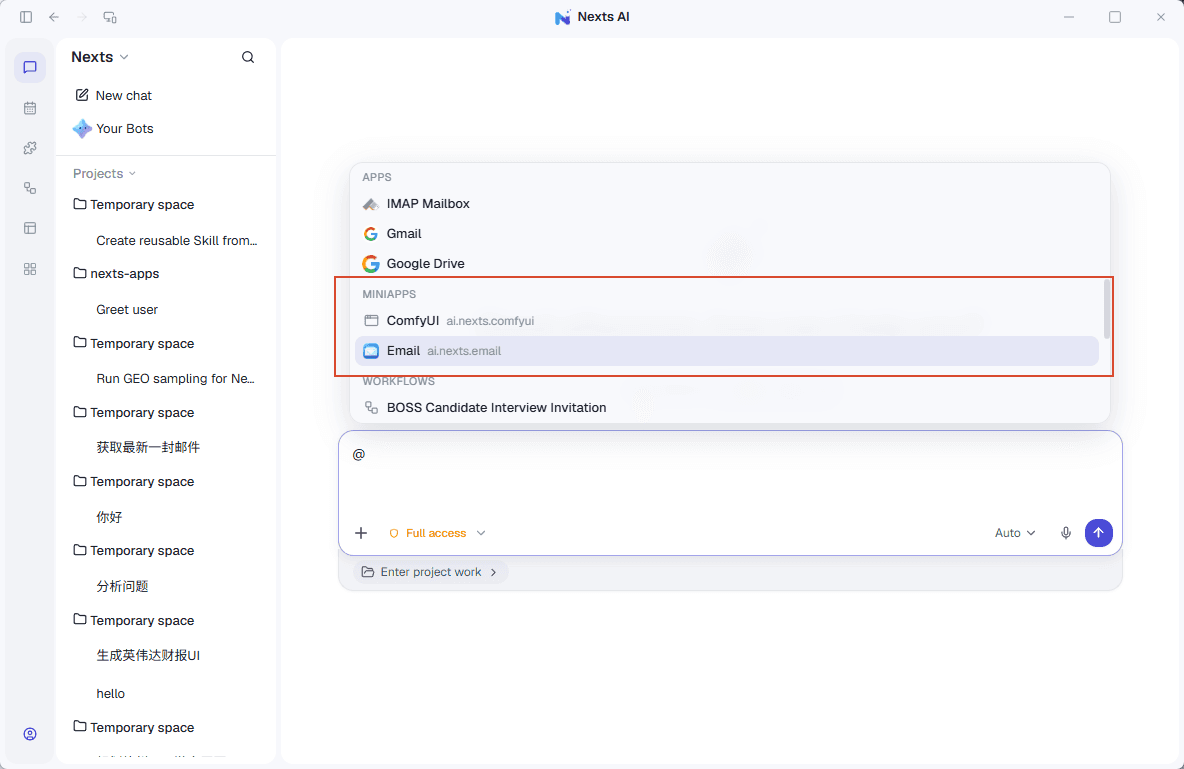
To have the assistant operate a program, enable the relevant computer-use plugin and specify the target and scope. For example, ask it to open a spreadsheet app and only inspect the current file's column names. See Plugins.
Removal, uninstalling, and deleting data
| Action | Result |
|---|---|
| Uninstall mini app | Removes the mini app while keeping local data |
| Permanently delete mini app data | Deletes local data, caches, logs, and backups irreversibly; it does not uninstall the mini app |
| Remove a computer program shortcut | Removes the launch entry from Nexts; the program stays installed |
| Uninstall a computer program | Runs its uninstaller; canceling or leaving the program installed retains the shortcut |
Submit to the marketplace
Prepare the package, description, and review materials requested by the form. Click Submit mini app and check the review result in My submissions. Every version is reviewed and is listed publicly only after approval. If an upload result is unclear, check your submissions before retrying.
Common problems
- Mini app will not open: check its enabled state, supported platform, and background-service logs.
- Program not listed: use Browse .exe or detect it again.
- Installed but will not open: check its installation path and whether it launches directly from Windows.
- Upgrade required: check third-party installation access on your account page.
- Opens but the assistant cannot use it: check the computer-use plugin, permissions, and current Agent's capabilities.