Connect from Your Phone
Pair a phone with your desktop Nexts and optionally enable full remote desktop control.
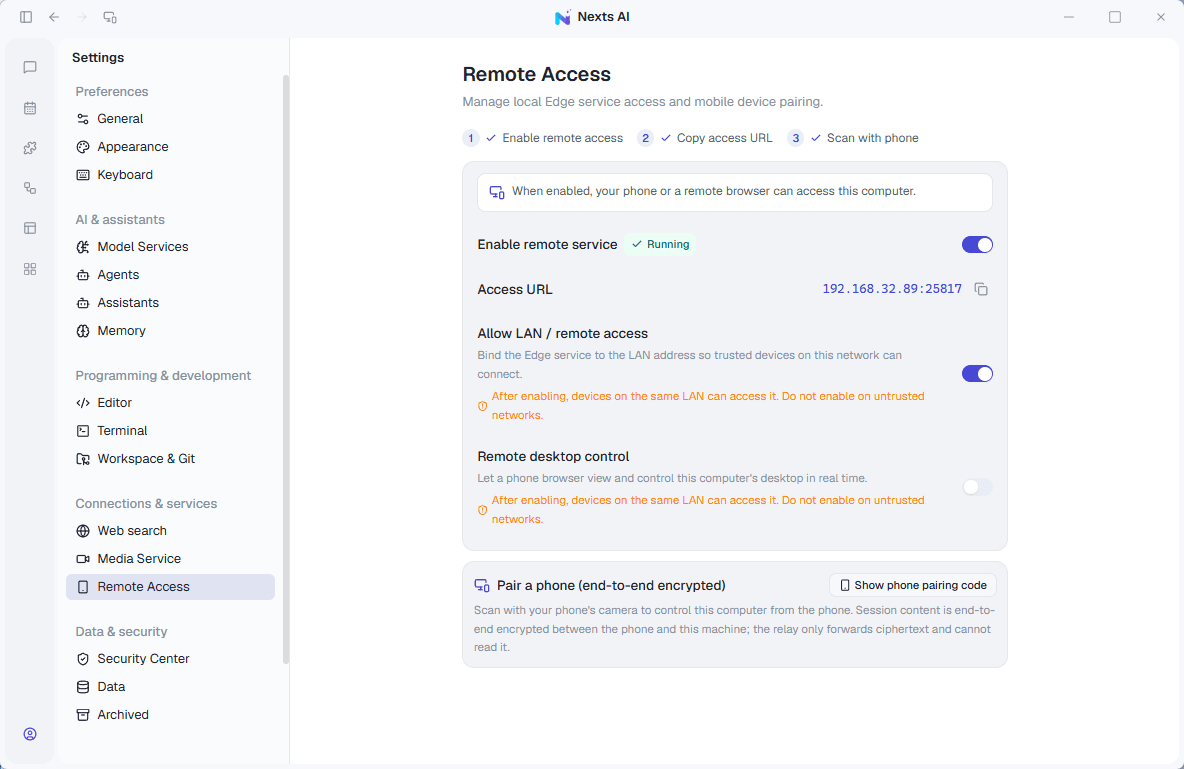
Open: Settings → Remote access, or the phone icon in the title bar.
You are connecting to Nexts on the host computer. Keep that computer awake, online, and running Nexts.
What is in this category?
| Feature | What it does | How to enable it |
|---|---|---|
| Phone access to Nexts | Continue conversations and work on the host | Enable remote service, then scan to pair |
| Pairing codes | Connect trusted devices or refresh access credentials | Show / Refresh phone pairing code |
| Remote desktop control | View the computer screen and operate other programs | Enable desktop control separately; use its remote ID and password |
| LAN access | Access Nexts over a trusted local network | Enable LAN access and use the displayed address |
| Stop access | Close the host's remote entry points | Disable remote service and any separately enabled desktop control |
Use phone pairing to continue chats. Enable remote desktop when you need the full computer screen.
Connect to Nexts
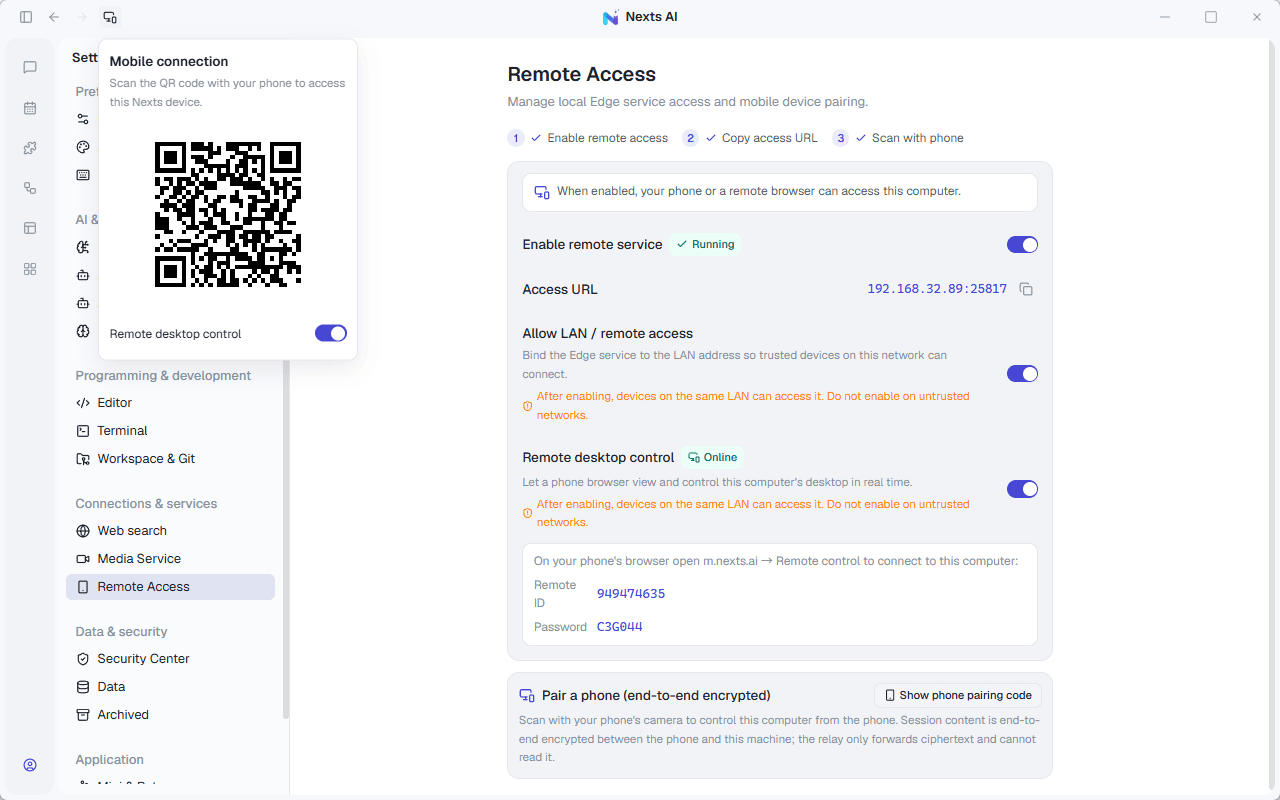
- Sign in on the computer and check that the account is online and the device is registered.
- Open Settings → Remote access, enable Remote service, and wait for it to run.
- Expand Show phone pairing code, or open the title-bar phone panel.
- Scan the QR with your phone camera. Open the m.nexts.ai page in the browser and follow its pairing instructions.
- Open an existing conversation on the phone to verify the connection.
Result: the phone accesses work on this computer. Pairing does not synchronize the entire local workspace onto the phone.
The current QR flow does not require the older public tunnel. The title-bar panel shows current status; if it says the service is stopped, enable it in settings first.
Use a code or pair again
Copy the pairing code from settings if scanning is inconvenient, then enter it through the mobile pairing flow. Codes are single-use. If a code is used or invalid, choose Refresh pairing code and try the new one.
If the mobile page asks you to sign in, use the corresponding Nexts account. Follow the current interface rather than relying on countdown or automatic-refresh behavior in older tutorials.
Keep pairing details private
The QR, code, and links containing pairing parameters are access credentials. Share them only with trusted devices. Do not include them in public screenshots or support requests.
Control the whole desktop
Using Nexts remotely and controlling the entire desktop are separate capabilities.
- Enable Remote desktop control in the phone panel or remote settings.
- Wait for it to come online and display its remote ID and password.
- Open m.nexts.ai on your phone, select Remote control, and follow the connection prompts.
- Turn off Remote desktop control on the computer when finished.
This can expose other applications on the screen. Keep the remote ID, password, and pairing credentials private.
LAN access and disconnecting
For a trusted local network, enable Allow LAN and use the displayed address. Network isolation or a firewall may still block access.
To stop remote access to Nexts, turn off Remote service. Turn off remote desktop control separately if it is enabled. Closing a phone tab does not stop the computer's remote service.
Phone relay session content is encrypted end to end between the phone and computer; the relay forwards ciphertext. Cloud models and external apps still follow their own data-handling rules.
If something goes wrong
| Symptom | Check |
|---|---|
| No QR appears | Service running, account online, device registered |
| Code is rejected | Refresh a used or invalid code |
| Sign-in appears after scanning | Sign in as prompted and select the host |
| Nexts works but the desktop is unavailable | Enable remote desktop control separately |
| Connection drops | Host sleep, Nexts exit, or network changes |
| LAN address does not open | LAN setting, network isolation, and firewall |
For further help, record versions, time, and the error message. See troubleshooting.