Find Your Way Around Nexts
Locate everyday controls and choose between chats, Bots, projects, apps, and workflows.
Find the right entry
| Entry | Purpose |
|---|---|
| Activity bar → Chat | Start or continue a conversation |
| Top of chat sidebar → Nexts / Bots | Switch between everyday chats and lasting assistants |
| Chat sidebar → Projects and search | Organize work and find past conversations |
| Activity bar → Tasks / Calendar | Events and scheduled tasks |
| Activity bar → Plugins | Plugins, skills, and connections |
| Activity bar → Workflows | Edit, publish, and run repeatable processes |
| Activity bar → Canvas | Organize media and create images or video |
| Activity bar → Apps | Install mini apps and open computer programs |
| Phone icon in the title bar | Phone pairing and remote controls |
| Avatar / Nexts logo menu | Account, settings, help, and sign-out |
Use sidebar search for conversation history; the older separate History button is no longer needed. Navigation may collapse in narrow windows and on phones.
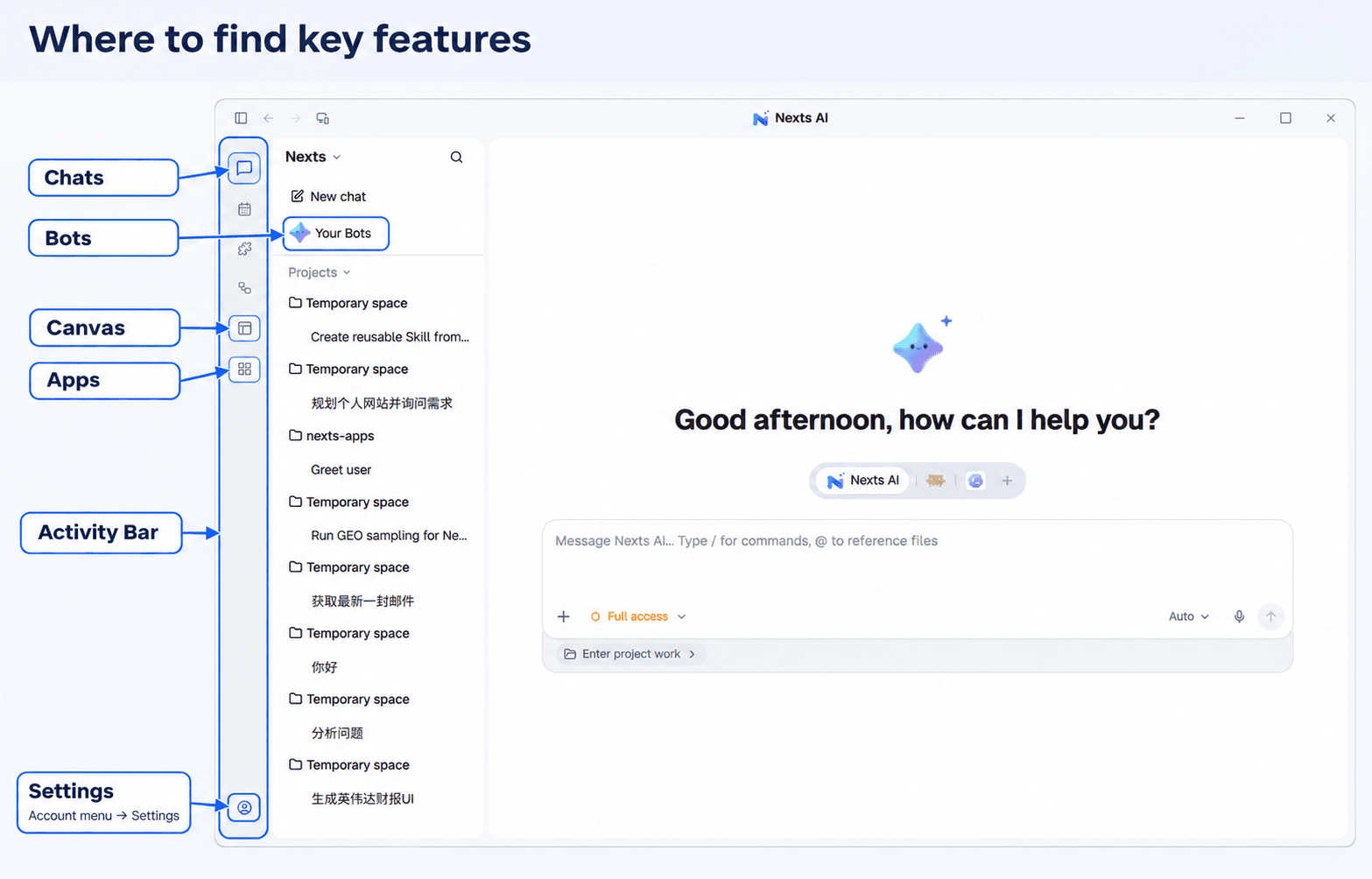
Start a conversation
- Start a new conversation or select one in a project.
- Choose a model. Configure an external executor in settings if needed.
- Add attachments or use
@to select available files, apps, and context. - Explain the goal, materials, output format, and save location.
- Follow progress and inspect the result.
Switching pages does not mean a running task has stopped. Use its stop control when you want to stop execution.
Choose a working style
| Need | Use |
|---|---|
| A question or one attachment | Regular chat |
| Ongoing work in one folder | Project |
| A lasting role and preferences | Bot |
| Repeat a fixed sequence | Workflow |
| Run at a particular time | Scheduled task |
| Demonstrate a reusable computer task | Skill recording |
Plans and permissions
Plan mode helps discuss goals and steps before execution. Permission mode controls how tool actions are approved. Agreeing on a plan does not automatically grant every file, command, or external-service permission. See permissions.
Find files and past results
Check the save location in the answer or open the current working folder. Bots also have a working folder in their library. Save important results to a known location; not every generated file lives in the same temporary space.
Archived conversations can be restored under Settings → Archived conversations. Back up important files before moving or reorganizing them: whether an operation can be reversed depends on what actually ran.
Adjust your preferences
Use Settings for language, display, shortcuts, models, memory, and data directories. The floating assistant provides shortcuts through its current context menu.