Search the Web
Find current information and choose the search service used by Nexts.
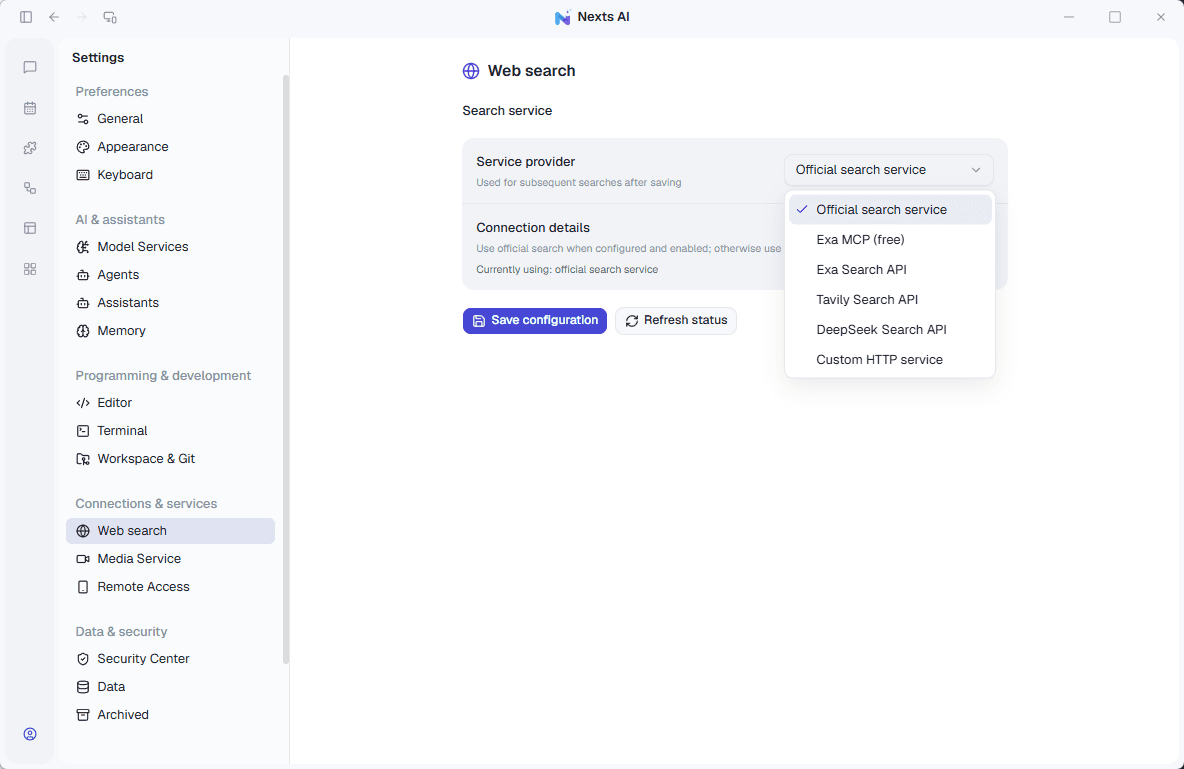
Open: Settings → Web search. Request a search directly in chat.
Web search finds current information and sources. It is configured separately from your chat model.
Run your first search
- Open Settings → Web search and select Official search service.
- Check its status. When the official service is not configured or is disabled, Nexts falls back to Exa MCP.
- Ask for a search in chat, including source links.
- Open those links and check the dates and important details.
Find this project's latest official release notes. List three main changes,
with the original links and publication dates.
Result: the answer should include sources you can inspect. If it only gives a general answer, explicitly ask it to search and identify its sources.
Use your own search service
Choose Exa Search API, Tavily, DeepSeek, or a custom HTTP service. Enter the required credentials and address, then save. The Exa MCP option does not require an API key.
A chat model key is not automatically a search key. After changing providers, run a simple search to verify the configuration.
If something goes wrong
- Search fails: inspect service status, connectivity, and credentials; refresh before retrying.
- Results are old: specify the date range and ask for official or original sources.
- You already have a URL: provide it directly. Use the Chrome plugin for supported signed-in browser tasks.
Search terms are sent to the selected search provider. Keep passwords and private customer details out of queries.