Five-Minute Quickstart
Turn a document into a summary and action list, then check and save the result.
You will turn one document into a summary and action list. Have the Nexts desktop app, an account, and a suitable test document ready.
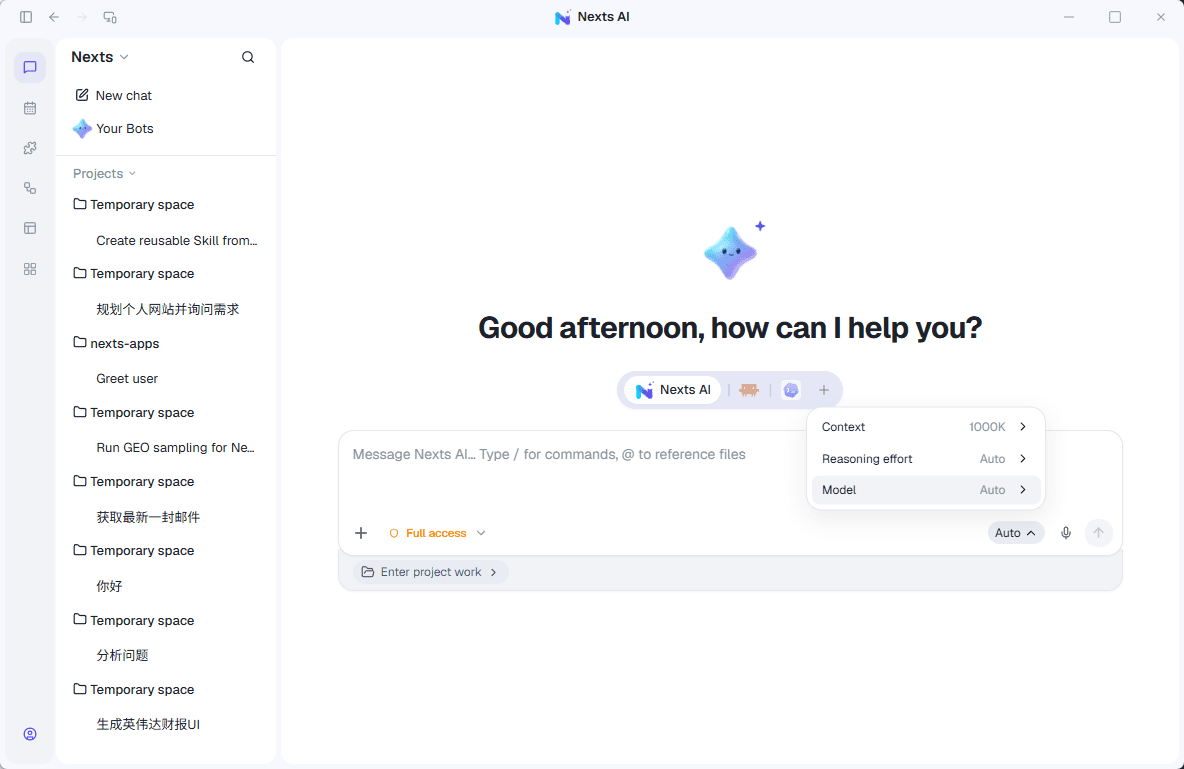
1. Sign in and select a model
Open Nexts and sign in or register. In a new chat, select an available Nexts AI model.
To use your own key, configure it in Settings → Model services, then return to the model picker. You do not need to install every plugin first.
2. Add a document
Use the attachment button beside the message box, or paste some text. Start with material that contains no sensitive information.
For ongoing work with a folder, use a project. A one-off task does not require one.
3. Ask for a concrete result
Adapt this example:
Read the attachment and produce:
1. A summary of no more than 150 words.
2. An action table with task, owner, and due date.
3. Mark anything not stated in the document as “To confirm.”
Show the result in chat first.
4. Follow progress
Send the request and add clarification as needed. File access, tools, and changes follow your selected permission mode. Check the target and scope of any approval prompt.
For a complex task, enable plan mode to discuss the approach first. A small document task can usually start from your instructions.
5. Check and save the result
Compare the answer with the source, especially names and dates. To save it, specify a format and location:
Save the approved action list as action-list.md in the project folder.
Tell me where it was saved.
Result: you should see the summary and action table. If you requested a file, open it from the reported location and inspect its contents.
Next steps
- Ongoing work: projects and files.
- A reusable assistant: create a Bot.
- Current information: web search.
- Sign-in or model issues: troubleshooting.
Where does the document go?
Conversations and working files are stored locally by default. A cloud model receives the content needed for your task. Local storage does not mean every operation is offline.